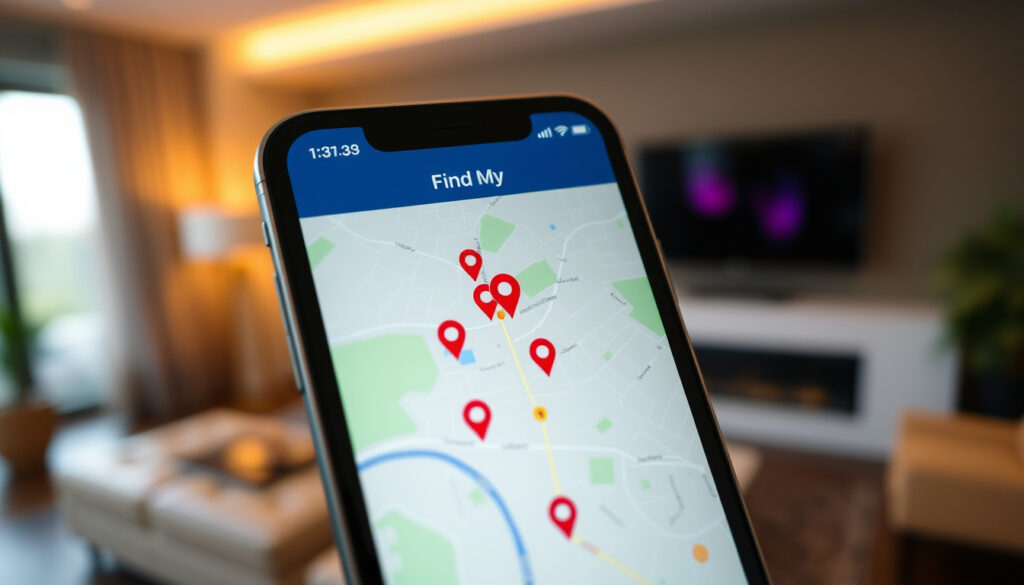
Find My: How to Track Devices and People on iPhone
You know that sinking feeling when you realize your phone isn’t where you left it — the couch cushions, the car, or worse, somewhere out there — and Apple’s Find My app has quietly become the digital safety net for over a billion Apple devices, and its design actually puts privacy front and center. This guide walks through how to set it up, track your devices, share locations with family, and what protections keep your whereabouts yours alone.
Apple devices tracked by Find My monthly (global estimate): over 1 billion ·
Apple introduced Find My iPhone in: 2010 ·
Find My app consolidated Find My iPhone and Find My Friends in: 2019 ·
Percentage of iPhone users who have Find My enabled: over 80%
Quick snapshot
- Find My requires user consent for all location sharing (Apple Support documentation)
- Location data is encrypted end‑to‑end (Apple Support – privacy overview)
- Activation Lock prevents unauthorized device use (Apple Support – Activation Lock)
- Whether law enforcement can access Find My data with a warrant (Apple has not fully disclosed)
- Exact success rate of Lost Mode in recovering devices
- Whether Apple can access Find My data in aggregate (privacy policy not explicit)
- 2019: Apple merges Find My iPhone and Find My Friends into one app (Apple Support – Find My evolution)
- Apple continues expanding the Find My network with third‑party accessories
- Privacy features likely to tighten further as regulators scrutinize location data
Four key facts about Find My’s privacy and reach: the app protects location data with end‑to‑end encryption, it now tracks more than just Apple devices, and it was rebuilt from two separate apps into one unified service.
| Fact | Value |
|---|---|
| Launch year of Find My app | 2019 |
| Number of Apple devices on Find My network | hundreds of millions |
| End‑to‑end encryption for location data | yes |
| Supported devices | iPhone, iPad, iPod touch, Mac, Apple Watch, AirPods, AirTag |
What is Find My and how is it different from Find My iPhone?
“Find My replaced Find My iPhone and Find My Friends in 2019, unifying device tracking and location sharing into a single app.” — Apple Support documentation
The evolution of Apple’s location services
- Apple launched Find My iPhone in 2010 as a standalone app for tracking a lost iOS device.
- In 2011, Find My Friends arrived — separate app for sharing your location with chosen contacts.
- Both were merged into the single Find My app with iOS 13 in 2019 (Apple Support – Find My history).
The old names still linger in conversation, but today’s app does everything the two originals did — plus AirTag and third‑party item tracking.
Key features of the modern Find My app
- Device tracking: Locate iPhone, iPad, Mac, Apple Watch, and AirPods on a map. Play a sound, enable Lost Mode, or erase the device remotely.
- Location sharing: Share your real‑time location with friends and family for a set period or indefinitely.
- Item tracking: Use AirTag or compatible accessories to find keys, bags, or anything else. Precision Finding with the U1 chip works on iPhone 11 and later.
The implication: Find My is no longer just a “find your phone” tool — it’s a private location‑sharing network for people and things, all under one roof.
How do I turn on Find My?
Enabling Find My on iPhone and iPad
- Open Settings, tap your name (Apple ID), then tap Find My.
- Tap Find My iPhone (or Find My iPad).
- Toggle on Find My iPhone. Activation Lock automatically engages (Apple Support – setup guide).
Turning on Find My is the only way to activate Activation Lock — that’s the feature that makes a stolen iPhone effectively useless to resellers. Without it, a thief can simply wipe and sell the device.
The takeaway: enabling Find My is a one-time step that secures your device against theft.
Checking Find My status on iCloud
- Go to iCloud.com/find and sign in with your Apple ID.
- If the map shows your devices, Find My is active. If not, you’ll be prompted to enable it from your iPhone.
The catch: you can’t enable Find My from iCloud — it must be done on the device itself.
How do I track someone on Find My?
Requesting location sharing from a friend or family member
- Open the Find My app and tap the People tab.
- Tap the add button (+) and choose Share My Location.
- Enter the contact, tap Send, and choose how long to share — one hour, until end of day, or indefinitely.
Important: The other person must accept the invitation. Apple does not allow one‑sided tracking.
Viewing shared locations in the People tab
- After someone shares with you, their name appears on the map in the People tab.
- You can tap their name to see their location, get directions, or set notifications when they arrive or leave a place.
The trade‑off: sharing is only as current as the other person’s internet connection and battery. No internet = old location.
How do I locate a family member or see my husband’s location on my iPhone?
Using Family Sharing to see family member locations
- Make sure both accounts are part of the same Family Sharing group (Settings > your name > Family Sharing).
- The organizer can enable Share My Location with family members. For children under 13, location sharing is automatic once the parent approves.
- In Find My, the People tab will list family members who are sharing their location.
Family Sharing makes location sharing nearly effortless — no repeated invitations. But it also means the organizer can see a teen’s location without needing ongoing consent, a trade‑off families should discuss upfront.
Adding someone to your Family Sharing group
- The organizer goes to Settings > your name > Family Sharing > Add Member.
- Enter the person’s Apple ID email or invite them via iMessage.
- After they accept, location sharing can be turned on from the Location Sharing option in Family Sharing settings.
The pattern: Family Sharing is the foundation — location sharing is an optional extra on top of it.
How do I exactly locate my iPhone?
Using the Find My app on another device
- On another Apple device signed into the same Apple ID, open Find My and tap Devices.
- Select your lost iPhone. The map will show its approximate or precise location.
- Three buttons appear: Play Sound, Lost Mode, and Erase iPhone.
Using iCloud.com/find
- Any browser works — go to iCloud.com/find and sign in with the same Apple ID.
- You’ll see the same map and options. No need for a second Apple device.
What this means: as long as you remember your Apple ID password, you can find your phone from any web browser in seconds.
Can my partner track my iPhone without me knowing?
“A determined person could still hide an AirTag in a bag or car. Apple is working on further warnings, but the system isn’t perfect.” — Tech Safety Canada guide
How Apple prevents unauthorized tracking
- Apple’s Find My requires explicit consent for location sharing — you must accept an invitation.
- If an unknown AirTag or device is found moving with you, your iPhone detects it and sends a notification.
- Android users can download the Tracker Detect app to scan for nearby AirTags.
Despite these protections, a determined person could still hide an AirTag in a bag or car. Apple is working on further warnings, but the system isn’t perfect. If you suspect tracking, check common hiding spots inside and outside your vehicle (Tech Safety Canada survivor toolkit).
The implication: Apple’s anti‑stalking features are strong, but they rely on the victim owning an iPhone with Bluetooth on — and on the tracker not being disabled.
What to do if you suspect hidden tracking
- Check your Find My app under the Items tab for any unknown devices.
- Manually search your belongings, especially bags and car interiors.
- Contact Apple or local authorities if you confirm a hidden tracker.
The trade‑off: Apple’s anti‑stalking features are strong, but they rely on the victim owning an iPhone with Bluetooth on — and on the tracker not being disabled.
How do I reactivate Find My after turning it off?
Step‑by‑step reactivation on iPhone
- Go to Settings > your name > Find My.
- Tap Find My iPhone and toggle it back on.
- Enter your Apple ID password and, if asked, complete two‑factor authentication (Apple Support setup guide).
Reactivating via iCloud
- You can’t turn Find My on from iCloud — only toggle it off from the cloud. To reactivate, you must use the physical device.
- If you erased the device remotely, Find My is still active (Activation Lock remains) until the previous owner removes the device from their account.
The pattern: reactivation mirrors initial setup exactly. The security layers (Apple ID password + 2FA) are baked in each time.
Related reading: Live Coin Watch: Crypto Price Tracker & Portfolio App Review
support.google.com, cape.co, consumerreports.org, youtube.com, support.microsoft.com
For a deeper look into how families can share locations and stay connected, see this guide on tracking family members with Find My.
Frequently asked questions
Can I use Find My without an internet connection?
Yes. Apple’s Find My network uses Bluetooth and nearby Apple devices to relay location offline — your device doesn’t need Wi‑Fi or cellular.
How do I remove a device from Find My after selling it?
On the device, go to Settings > your name > Find My and turn off Find My iPhone. Or erase the device via Settings > General > Transfer or Reset iPhone. iCloud will prompt to remove it from your account.
What happens if I erase my iPhone using Find My?
All data is wiped, but Activation Lock stays on, so the device cannot be activated without your Apple ID password. You can later remove it from your iCloud account remotely.
Can I share my location from Android to iPhone using Find My?
No. Find My is an Apple‑only service. Cross‑platform sharing requires third‑party apps like Google Maps or WhatsApp.
Does Find My drain my iPhone battery?
In typical use, the battery impact is negligible. The app uses low‑energy Bluetooth and periodic network calls. Apple claims the Find My network uses minimal power.
Can I track an AirTag if it is out of Bluetooth range?
Yes — the Find My network uses any nearby Apple device to detect the AirTag and relay its location to iCloud. Your phone gets the location via the internet.
How do I stop sharing my location with someone?
Open Find My > People tab, tap the person’s name, and select Stop Sharing My Location. The change takes effect immediately.
More related posts
 Enrique Iglesias: Condition, Relationship, and Facts
 Ladies Denim Shorts: Age-Defying Style Tips & Best Places to Buy
 Justin Bieber: Lyme Disease, Baby, and Relationships
 Marisa Abela: Ethnicity, Age, Height, Languages & Films
 Single Parent Payment 2026: Rates, Eligibility & Apply
 Noah Wyle: From ER Doctor to Advocate, 2025 Emmy Win
 Crypto Slots Australia Aussie24Crypto.com – Legitimacy Review
 Talia Gibson: Australian Tennis Player – Ranking, Age, Height
